



Automated Expense Management in HK: A Practical Guide

Galih Gumelar

Summary
Automation comes in 3 kinds. Preventive rules, workflow routing and data handling each remove a different manual job.
1 flow covers every expense. Spend, capture, approval, payment, sync and archive run in sequence.
5 kinds of tools do most of the work. Cards, receipt capture, approval workflows, accounting sync and reimbursements.
Accounting sync closes the loop. Approved spend should post to Xero or NetSuite without re-keying.
Setup takes 7 steps. Cards come first among the tools, because they cut the number of claims later.
4 more steps optimise it with Aspire. We combine the tools in 1 account, so each step passes data to the next without re-keying.
Business expenses in Hong Kong create 2 jobs: controlling the spend and recording it accurately. Automated expense management is software that does both without manual re-keying.
This guide starts with the basic terms and how automation differs from manual work. It then follows 1 expense from receipt to archive and covers the tools that help. Finally, it gives a step-by-step setup from scratch, shows how to optimise it with Aspire and works through an example.
SLUG (delete this line before upload): automated-expense-management-hong-kong
What is expense management?
Expense management is the process of controlling, approving, paying and recording the money a business spends. It covers employee claims and company card spend, and it ends in records your accountant can rely on.
Expense tracking only records what was spent, while spend management goes 1 step earlier by setting budgets and limits. Our guide to expense tracking apps compares standalone trackers.
Which basic terms should you know?
5 terms cover most of expense management. The table defines each one with a Hong Kong example.
| Term | Meaning | Hong Kong example |
|---|---|---|
| Expense claim | A request to repay money an employee spent for the business | A salesperson pays for a client lunch and files a claim |
| Card spend | Spend paid directly with a company card | A software subscription charged to a company card |
| Receipt capture | Turning a paper or digital receipt into a stored record | Scanning a taxi receipt in the app |
| Approval workflow | The rules that route a claim to approvers | A manager and then finance approve a claim |
| Reconciliation | Matching recorded spend to the bank statement | Finance compares the ledger with the bank at month-end |
How does automation differ from manual?
Automated expense management is software that does each step for you, so paper and re-keying drop out. The table compares the 2 approaches step by step.
| Step | Manual | Automated |
|---|---|---|
| Receipts | Kept in envelopes or phone galleries | Scanned and stored in the app |
| Approvals | Sent by email or chat | Routed through a multi-level workflow |
| Payment | Paid after finance matches the paperwork | Paid from the account after approval |
| Accounting | Typed into the books again | Synced to Xero or NetSuite |
| Records | Scattered across files and inboxes | Held in 1 repository with an audit trail |
What does automated mean in practice?
Automated means software applies your rules and moves the data, so people only handle exceptions. A shared drive or a spreadsheet is digital, but it is not automated, because someone still checks, routes and re-types each item.
Automation in expense management comes in 3 kinds. Each one removes a different manual job.
- Preventive rules. Cards carry adjustable limits and merchant locks, so a card works only where and up to the amount you set. We also let you freeze or cancel a card at any time.
- Workflow routing. A claim moves through multi-level approval without email chasing, and finance sees new claims in real time.
- Data handling. Receipts are scanned in the app, approved spend posts to Xero or NetSuite, and files stay in 1 repository.
People still set the policy and review exceptions. Finance decides the limits, the approvers and the categories, then checks what the system flags.
Which use cases suit automation in HK?
Automation fits any recurring spend that needs a rule, an approval or a record. These 5 use cases show where Hong Kong businesses feel it first.
- Online store paying for ads and tools. A Hong Kong e-commerce brand gives each marketer a card with a monthly limit and a merchant lock, so ad and software spend stays on the right platforms.
- Sales team on the road. Salespeople scan receipts for client meals and taxis, then a manager and finance approve each claim. Our guide to business travel expenses covers trip policy.
- Bookkeeper's month-end. An outsourced bookkeeper receives approved spend already posted to Xero, so the month-end check compares the ledger with the bank.
- Overseas software costs. A Hong Kong design studio pays for global software with cards that carry monthly limits, so subscription spend stays within budget.
- Growing team. As headcount rises, the same limits and approval rules apply to each new cardholder and claimant.
Low volume is the exception. A business with a handful of expenses a month can start with cards and add the rest later.
How does an expense flow end to end?
An automated expense runs through 6 steps, from the first spend to a 7-year archive. The diagram shows who handles each step.
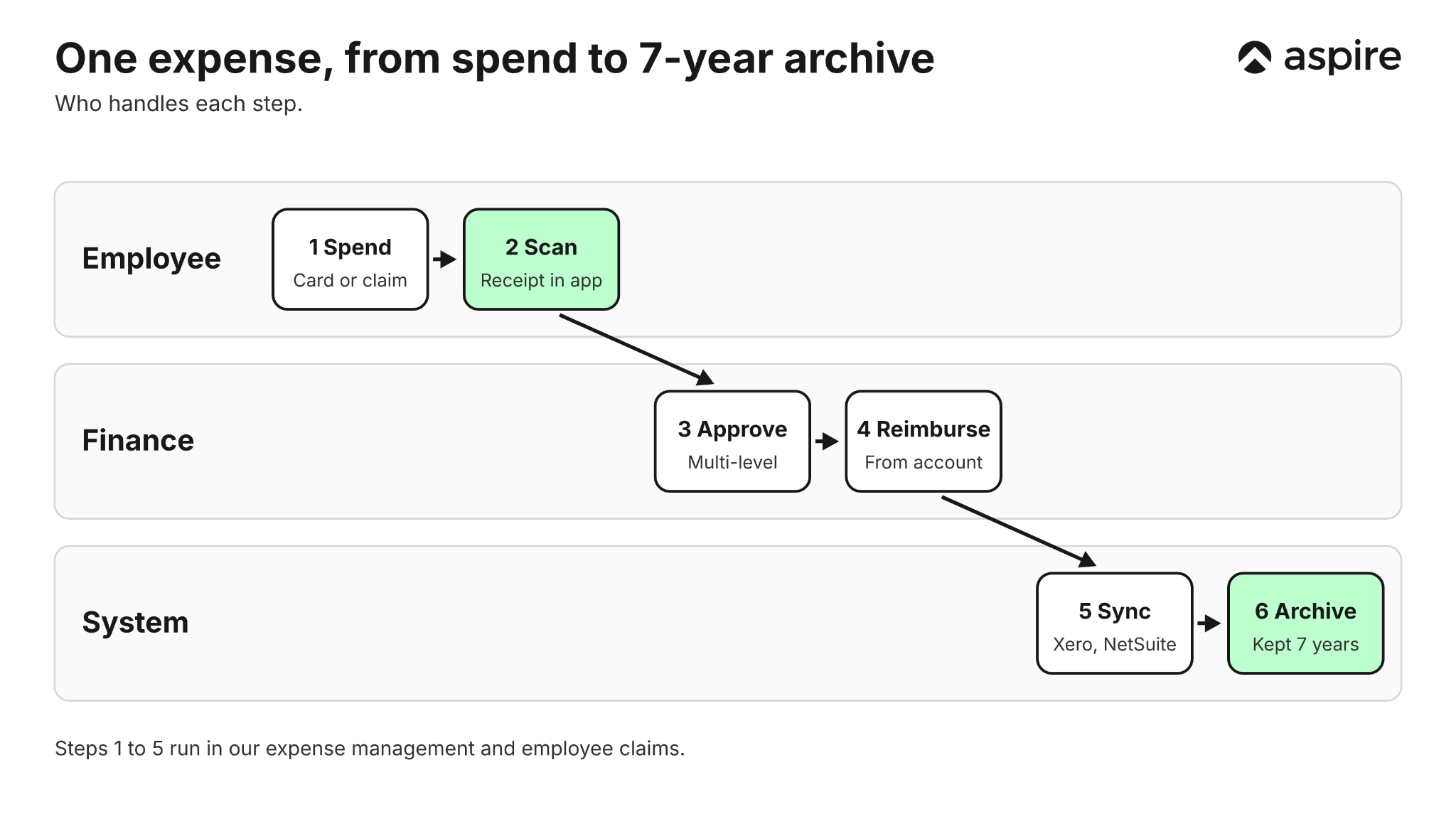
Our expense management and employee claims cover the first 5 steps of the flow in 1 account.
Which tools help automate expenses?
5 kinds of tools do most of the work: cards, receipt capture, approval workflows, accounting integrations and reimbursement payments. The table shows what each one automates and what to check before you choose.
| Tool type | What it automates | What to check |
|---|---|---|
| Corporate cards | Spend control at the point of payment | Adjustable limits, merchant locks, instant freeze |
| Receipt capture | Turning receipts into stored records | Mobile scanning, automatic receipt requests |
| Approval workflows | Routing claims to the right approver | Multi-level rules, real-time alerts |
| Accounting integrations | Posting approved spend to the ledger | Xero or NetSuite sync, tax rates, attachments |
| Reimbursement payments | Paying staff after approval | Paid from the same account as the spend |
Separate tools often leave gaps between steps. A card from 1 provider, a scanning app from another and a spreadsheet for approvals still need someone to match the data by hand. A single platform keeps the card payment, receipt, approval and ledger entry linked to the same transaction.
Which accounting tools can you connect?
Our expense management connects to Xero and NetSuite directly, and to Zoho Expense by export. The table shows what each connection does.
| Tool | How it connects | What to know |
|---|---|---|
| Xero | Direct sync as Spend Money transactions | Account, tax rate, tracking categories and attachments sync |
| NetSuite | Direct sync as Spend Money transactions | Only standard fields sync, and custom mandatory fields need defaults |
| Zoho Expense | Export from our Export Data feature, then import | Not a direct sync |
See all of our integrations.
How do you automate expenses from scratch?
You automate expenses in 7 steps: map the flow, write a policy, choose tools, then set up cards, receipts, accounting and a pilot. The table shows what to do at each step and what you get.
| Step | What to do | What you get |
|---|---|---|
| 1. Map your flow | List each spend type and who pays, approves and records it | The manual steps to automate first |
| 2. Write a policy | Set limits per spend type, approvers and a receipt deadline | Rules the software can enforce |
| 3. Choose tools | Compare platforms against the 5 tool types earlier and favour 1 platform. Our guide to expense tracking apps covers standalone trackers | Card, receipt, approval and ledger entry linked |
| 4. Move spend to cards | Give each person, team or vendor a card with a limit | Fewer claims to approve later |
| 5. Capture receipts and approvals | Staff scan receipts when they pay, and the policy becomes approval routing. Our guide to managing employee reimbursements covers the policy side | Claims routed without chasing |
| 6. Connect accounting | Map categories and tax rates to ledger accounts, then post test transactions | Entries that post without re-keying |
| 7. Pilot and roll out | Run 1 month with 1 team, fix the rules, then extend | A proven setup before full rollout |
The policy in step 2 drives every later step, so write it before you buy any tool.
How do you optimise it further with Aspire?
4 more steps put the whole setup in 1 Aspire account, so each step hands its data to the next without re-keying. These steps continue from step 7.
- Open 1 account for spend, claims and cards. Our expense management sits in the same account as your multi-currency business account, so you manage spend, claims and payments in 1 place.
- Set card controls. Each of our corporate cards carries an adjustable limit and merchant lock, and you can freeze or cancel it at any time. Eligible card spend also earns 1.2% unlimited cashback.
- Run claims in 1 workflow. Staff scan receipts in our app, and employee claims follow your multi-level approval rules. Finance sees new claims in real time, approved claims are reimbursed from the same account, and we send an automated receipt request when a card payment has no receipt.
- Sync to your books and set budgets. Approved spend syncs to Xero or NetSuite, so your bookkeeper reviews entries instead of typing them. Budgets with a named owner and team limits show spend in real time, and receipts and approvals stay in 1 repository with an audit trail.
Example: How does a 20-person HK firm do it?
A 20-person trading firm moves from a 9-day month-end to a 1-day review once capture and sync run all month. The diagram shows an illustrative month-end before and after.
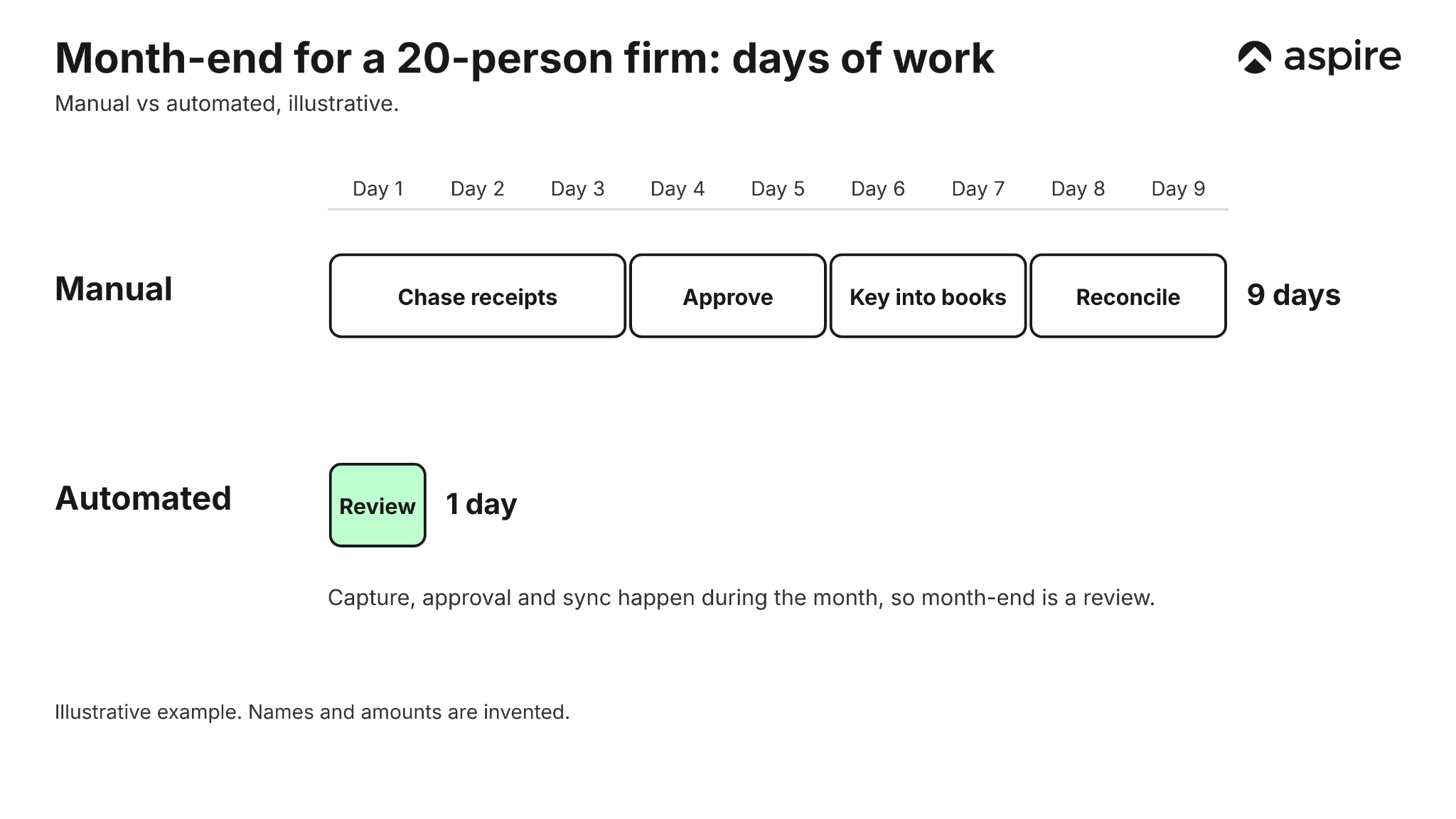
The firm issues cards to the sales team, so most spend arrives with a receipt attached. Finance reviews exceptions instead of chasing paper.
Here is how the firm sets it up. All names and figures are invented.
- Cards. Each salesperson gets a card with a monthly limit and a merchant lock for software and travel.
- Claims. Staff scan out-of-pocket receipts, and the finance manager approves each claim before payment.
- Books. Approved spend posts to Xero, so the month-end check compares the ledger with the bank.
- Archive. Receipts stay in the repository for the full 7 years.
Why Hong Kong Businesses Choose Aspire
Expense control is 1 part of managing company spend, and Aspire supports the accounts, cards and transfers that surround it.
💱 FX spreads from 0.18%, up to 3x cheaper than traditional banks. This applies across 130+ countries and 40+ currencies through Aspire's multi-currency account. It's useful for anything from paying overseas suppliers to settling international payments without losing margin to markup.
💰 1.2% unlimited cashback applies on every corporate card transaction, with no monthly cap. It kicks in automatically on eligible spend, with no minimum threshold to hit first. Over time, it quietly turns routine business spend into working capital.
🌐 Local transfer network, not multi-hop SWIFT chains, is how Aspire routes most payments. This means faster settlement and fewer intermediary fees eating into your payment before it reaches the recipient. It also reduces the chance of funds being held up for review at a correspondent bank along the way.
💸 Fixed USD 8 inbound SWIFT fee, tracked end-to-end with SWIFT GPI, applies when SWIFT is the right rail for your payment. There are no surprise deductions from correspondent banks along the way, so the amount you're quoted is the amount that arrives. You can also download payment confirmation instantly from the app, without calling the bank.
⚡ Approved in as little as 1 business day, with no branch visits and no paperwork stacks. Applications are completed entirely online, from document upload to approval. There's no waiting weeks on a relationship manager to call you back.
Open a free multi-currency business account built for Hong Kong SMEs, or explore how Aspire's corporate card fits into your day-to-day spend.
Frequently Asked Questions
It is software that captures, approves, pays and records business spend. It swaps manual re-keying for 1 connected flow.
At least 7 years, under section 51C of the Inland Revenue Ordinance.¹
Yes, the Inland Revenue Department (IRD) accepts scanned images as an alternative to original documents.²
Yes. Our expense management syncs expenses to Xero with account, tax rate, tracking categories and attachments.
Employees scan receipts in the app, claims follow multi-level approvals, and approved claims are reimbursed from the account.
Cards with limits, receipt scanning, approval workflows and accounting integrations, ideally in 1 platform.
We combine cards, receipt scanning, multi-level approvals, reimbursements and Xero or NetSuite sync in 1 account.
Sources
This blog is for general information only and does not constitute financial, legal, tax, or professional advice. Aspire’s services are subject to the terms outlined in our 'Terms of Service' and 'Pricing' pages. We make no guarantees as to the accuracy, completeness, or timeliness of the content, and past results do not indicate future performance. Always consult a qualified professional before acting on any information provided.
Galih Gumelar
Writer
Galih is a seasoned writer specialising in macroeconomics, business, finance and politics. With a writing history at CNN Indonesia, The Jakarta Post, and various other reputed organisations, Galih leverages his broad range of experiences to create insightful resources for those wanting to start a business.
Aspire Launchpad
Start Your Business with Aspire Launchpad
From incorporation to venture capital, we connect you with trusted service providers to make your entrpreneurial journey seamless.

Latest articles

Guides •
How to Use Dinpay: HK Business Guide
Learn how to use Dinpay (智付) from Hong Kong, with its products, payouts, onboarding, licences and fees, and where Aspire may fit better.
Guides •
How to Use Payoneer: HK Business Guide
How to use Payoneer in Hong Kong: sign up, receive HKD, withdraw, fees and card limits, plus where we may fit better.

Guides •
How to Use Currenxie: HK Business Guide
How to use Currenxie as a Hong Kong business: who can apply, how to receive and send money, published fees, cards and limits to check first.
Start your journey with Aspire
Open your free account